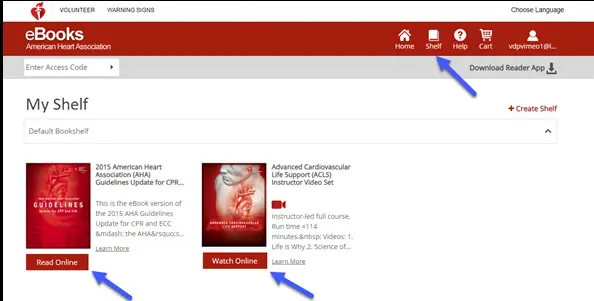
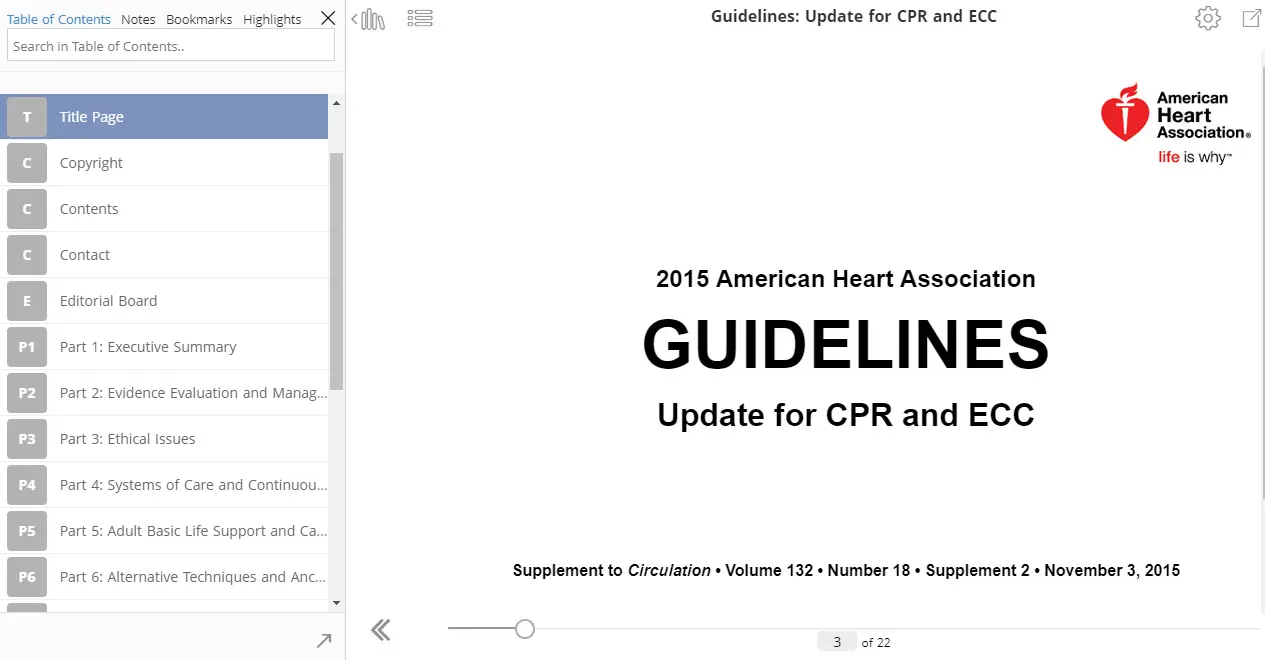
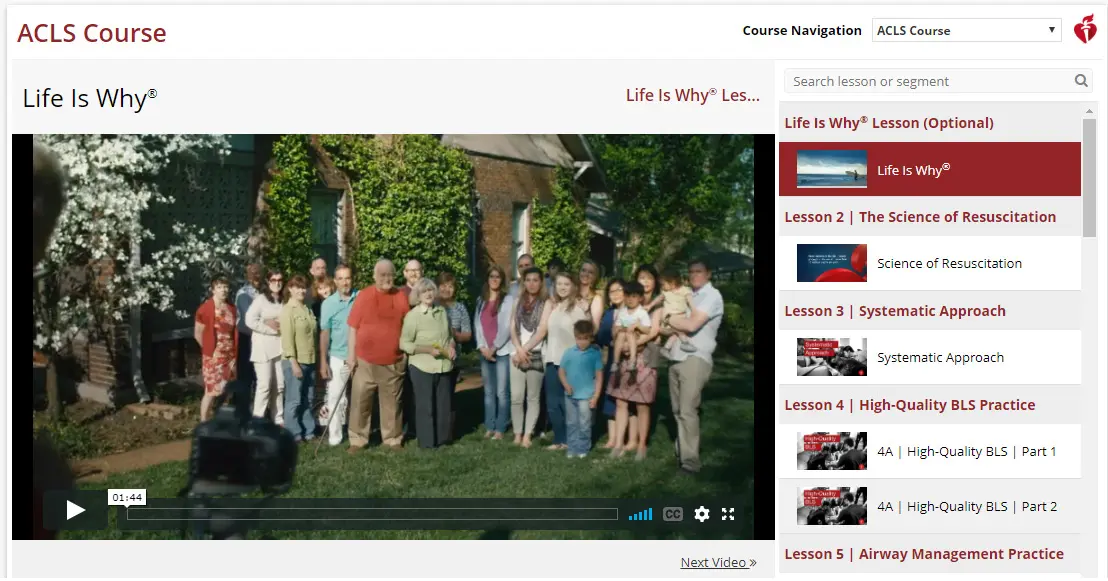
2. Locate the purchased item you would like to view from your Shelf and click the Read Online button (eBook) or the Watch Online button (Video) below it to open in your browser.
1. Login to eBooks.Heart.org with your AHA login credentials.
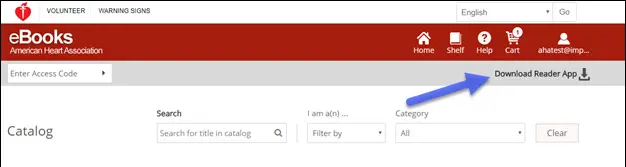
2. Click on the Download Reader App button at the top right of the page.
3. Follow the instructions to install the app. The app icon will appear on your desktop after successful installation.
1. Open the App Store application on your Mac device.
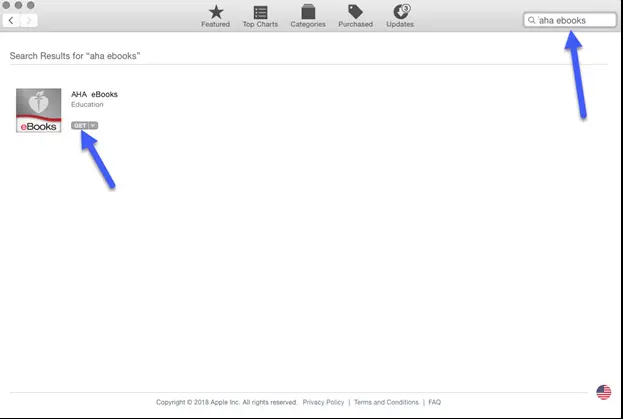
2. Search for AHA eBooks in the search bar in the top right corner.
3. Select Get next to the app icon.
4. The app will appear in Applications upon successful download.
Download eBook titles to your Bookshelf on Windows and Mac
Note: Only eBooks are available to download for offline use. Videos are not available for download at this time.
1. Open the AHA eBooks app and login with your AHA credentials. All purchased titles will automatically populate in your bookshelf.
2. To download to your computer:
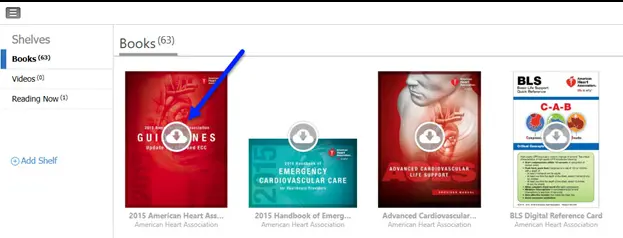
a. In the Thumbnail View, click on the gray Download icon on the title you wish to read. The icon will disappear when the download is complete.
b. In List view, click on the button next to the title that says Download. The button will change to Read when the download is complete.
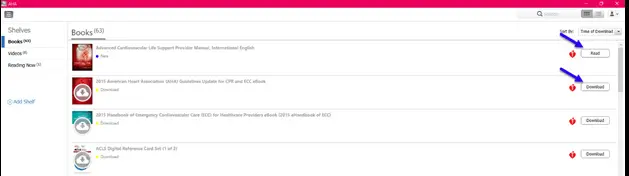
*Note: Internet access is required for the downloading process of AHA eBooks. After books are successfully downloaded to the app, the user will be able to view the book offline without an Internet connection in the AHA eBooks app.
Reading your eBook on your iPhone or iPad (iOS)
1. Open the App Store application on your device and search for AHA eBooks in the search bar.
2. Next to the AHA eBook Reader app, select Get to download the app to your device.
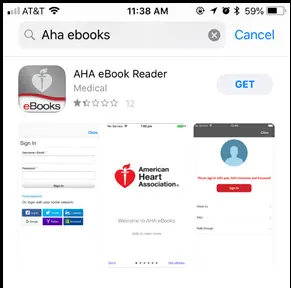
3. Open the app and login to your account with your AHA login credentials. Your bookshelf with your purchased titles will open upon successful login.
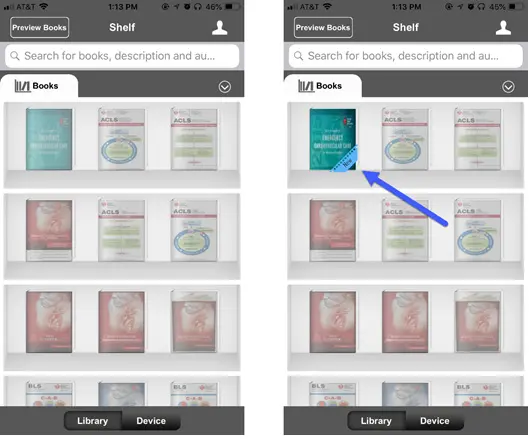
4. Tap on the eBook you wish to read to download the book to your device for offline viewing.
Reading your eBook on your Android device
1. Open the Google Play app on your device and search for AHA eBooks in the search bar.
2. Next to the AHA eBook Reader app, click Install to download the app to your device.
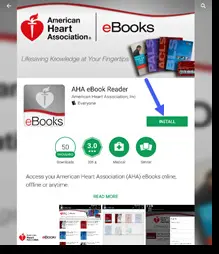
3. Once installed, open the app and login to your account with your AHA login credentials.
4. Click on the Bookshelf icon. Your purchased eBooks will automatically populate in this tab.
5. Tap on the eBook you wish to read to download the book to your device for offline viewing.
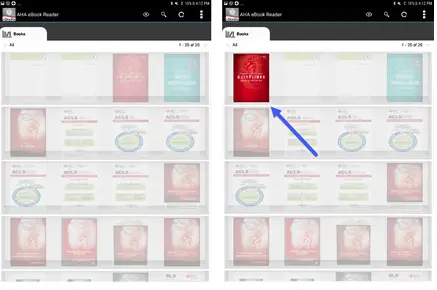
6. Tap on the eBook after it has completed downloading to read.
*Note: All electronic purchases must be made through the website www.eBooks.Heart.org in your device’s Internet browser. AHA eBook purchases CANNOT be made through the AHA eBooks app. All purchases made from www.eBooks.Heart.org will sync to the AHA eBooks app on your mobile device or desktop upon sign in. Account credentials will be the same on www.eBooks. Heart.org and on your desktop and mobile app. Be sure to use the same login information from the account you created on www.eBooks.Heart.org to access your account in your AHA eBooks app to ensure your purchases sync properly.
 Support Email : courses@iiems.in
  Kottayam, Ernakulam, Trivandrum, Tamil Nadu